Calendar
Event
Create an Event
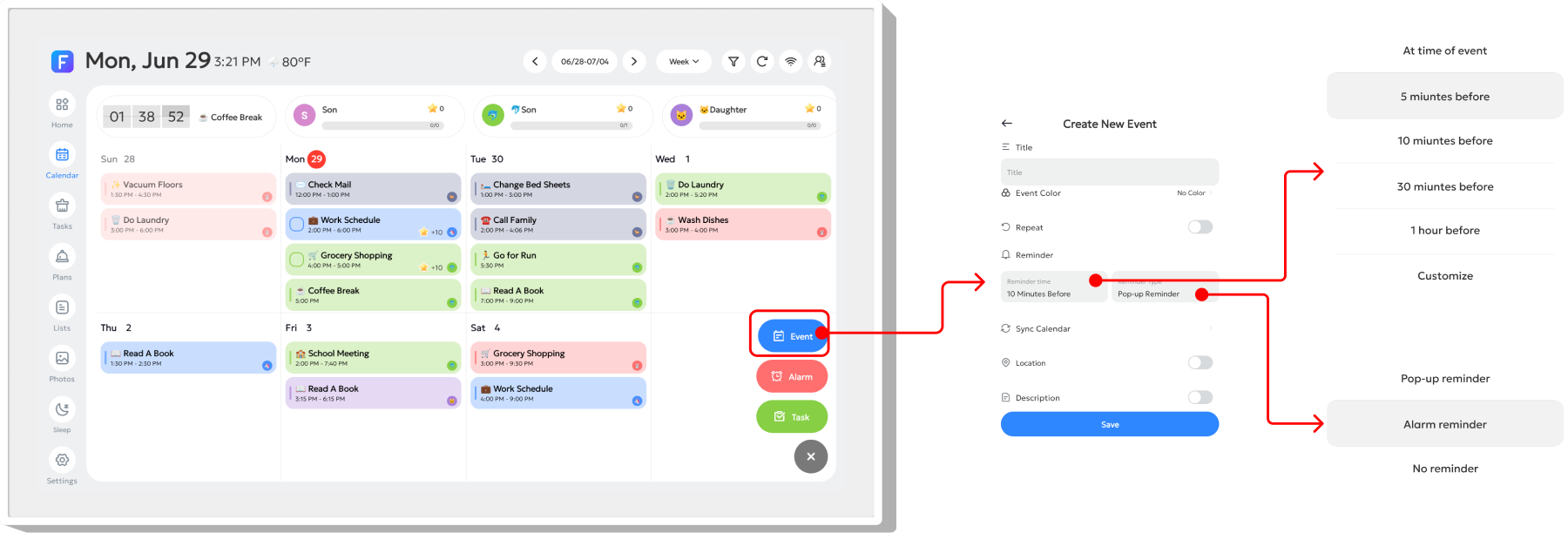
Tap the “+” button in the bottom-right corner, then select “Event”. In the pop-up window, you can edit the details, set the start/end time, customize the reminder time under “Reminder”, choose a reminder type under “Reminder Method”, and add notes in “Description”.
Event Reminder
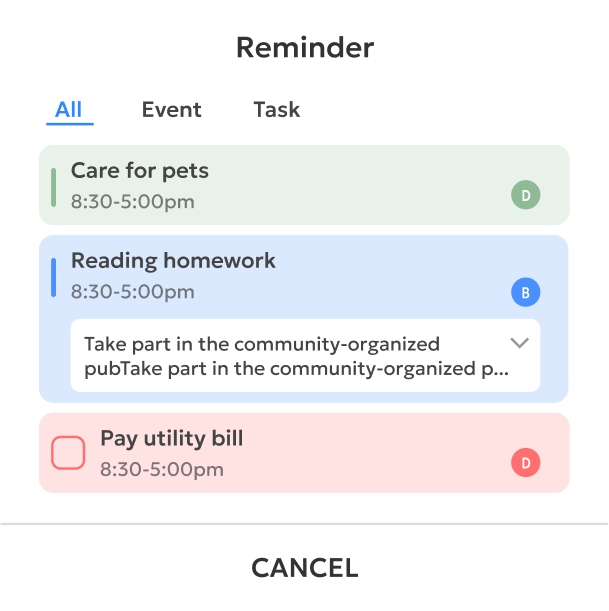
When an event is due, a pop-up reminder will appear.
When multiple reminders pop up simultaneously, they will be merged into one panel. Tap the panel title to switch between events.
Create New Items (Event / Alarm / Task)

Tap the “+” button in the bottom-right corner to open the quick action menu. You can create the following items:
Event: Create an event, such as a school play or appointment.
Alarm: Set a reminder or wake-up alarm.
Task: Create a task, such as homework, chores, or daily tasks.
Reverse Sync
If your account is bound to other third-party calendars and two-way synchronization is enabled, you may turn on the “Sync Calendar” option and select events created via synchronization on third-party calendar platforms.