Calendar
Import Calendars
Connect your favorite calendars to FotoCube and keep your family schedule up to date.
Choose your calendar type
Account Sync
Sign in to your account to sync calendars directly with FotoCube.



Calendar Link Import
Import calendars using a shared calendar link (ICS URL).



Supported Providers
Google CalendarReal-time SynciCloud CalendarCalendar SyncOutlook CalendarCalendar SyncCozi CalendarImport via LinkTeamSnap CalendarImport via LinkYahoo CalendarCalendar SyncGoogle Calendar
Google CalendarReal-time SyncSync your Google Calendar with FotoCube in just a few simple steps.
Open Calendar
Open FotoCube and tap Calendar at the bottom.

Tap Import
Tap the Import button in the top-right corner.

Select Google Calendar
Choose Google Calendar from the list.

Sign in to Google
Log in to your Google Account and grant permission.

Choose Sync Mode
Choose between one-way or two-way synchronization.

Select Calendars
Choose the calendars you want to sync.
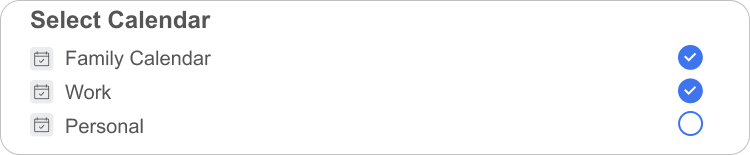
Sync Complete
Synchronization will complete within a few minutes.

Two-way Sync When two-way sync is enabled, you can choose whether to sync events created on the device to a selected third-party calendar.
iCloud Calendar
iCloud CalendarCalendar SyncConnect iCloud Calendar to FotoCube and keep Apple calendar events in sync.
Open Calendar
Open FotoCube and tap Calendar at the bottom.
Tap Import
Tap the Import button in the top-right corner.

Select iCloud Calendar
Choose iCloud Calendar from the provider list.

Choose Sync Mode
Choose one-way or two-way synchronization.
* The following demonstrates two‑way sync.

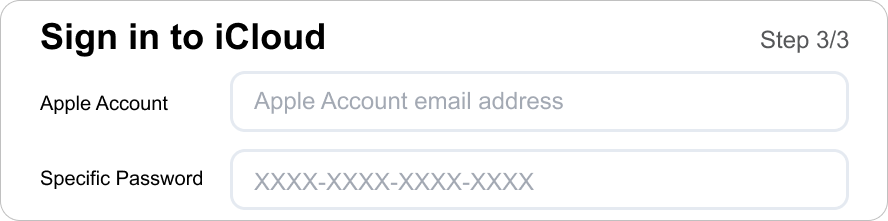
Connect Apple Account
Sign in to your iCloud account email. Enter or paste your app‑specific password.
· Which is generated on the Apple website and is not your regular iCloud account password.
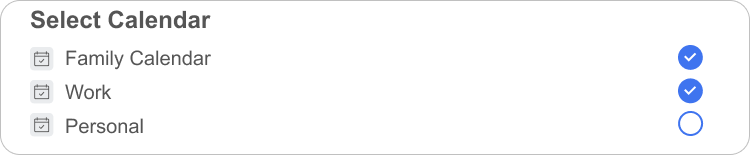
Select Calendars
Select the iCloud calendar categories you want to sync.
Sync Complete
Allow a few minutes for the first synchronization.

Outlook Calendar
Outlook CalendarCalendar SyncConnect a Microsoft account and select the Outlook calendars FotoCube should synchronize.
Open Calendar
Open FotoCube and tap Calendar at the bottom.
Tap Import
Tap the Import button in the top-right corner.

Select Outlook Calendar
Choose Outlook Calendar from the provider list.

Sign in to Microsoft
Enter your Outlook account and verify your account information.

Choose Sync Mode
Choose one-way or two-way synchronization.

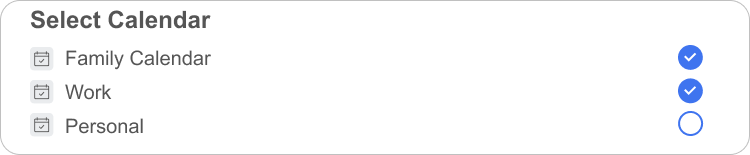
Select Calendars
Select the Outlook calendar categories you want to sync.
Sync Complete
Allow a few minutes for the first synchronization.

Cozi Calendar
Cozi CalendarImport via LinkCreate a shared Cozi URL and import it into FotoCube as a subscribed calendar.
Open Cozi
Open the Cozi app on your phone.
【🍎 iPhone 】 -Tap Family in the bottom-right corner.
【🤖 Android】-Tap the ☰ Menu in the top-left corner.

Open Settings
Tap the Settings icon next to your profile picture.

Share Cozi Calendars
Select Share Cozi Calendars in Settings.

Copy the Cozi URL
Choose All Events or selected calendars, then copy the shared URL.

Open FotoCube Calendar
Return to FotoCube and navigate to the Calendar page,
then tap the Import button located in the top‑right corner.

Select Cozi Calendar
Tap Sync next to Cozi Calendar.

Paste and Import
Paste the Cozi URL, then tap the Done button to complete import.

TeamSnap Calendar
TeamSnap CalendarImport via LinkExport an ICS URL from TeamSnap on the web, then subscribe to it in FotoCube.
Open TeamSnap
On a computer, go to go.teamsnap.com and sign in.

Open My Teams
Click My Teams in the top‑right corner of the page.

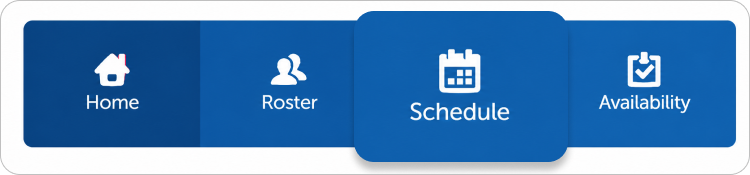
Open Schedule
From the team homepage, choose the Schedule tab.
Open Sync Calendar
Open Settings and choose Sync Calendar / Export.

Copy the ICS URL
Copy the Full Calendar or Games Only ICS URL.

Open FotoCube Calendar
Return to FotoCube and navigate to the Calendar page,
then tap the Import button located in the top‑right corner.

Select TeamSnap
Tap Sync next to TeamSnap Calendar.

Paste and Import
Paste the TeamSnap URL and complete the import.
Yahoo Calendar
Yahoo CalendarCalendar SyncSynchronize Yahoo Calendar to support two‑way calendar updates.
Open Yahoo Calendar
Go to calendar.yahoo.com and sign in to your Yahoo account.

Open Account Settings
Tap your profile icon in the top-right corner and select Manage your account.

Create an App Password
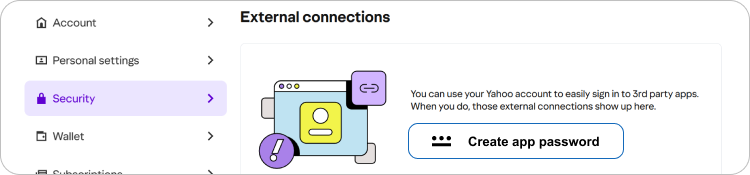
Go to Security, find External connections, and tap Create app password.
Generate App Password
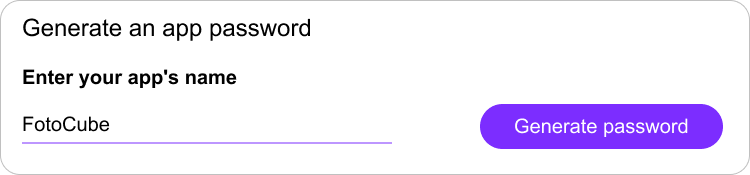
Enter your app name and tap Generate password.
Open Calendar Import
Open the FotoCube App, go to Calendar, and tap Import in the top-right corner.

Select Yahoo Calendar
Tap Sync next to Yahoo Calendar. Select Two-way Sync, then tap Next.

Complete Sync
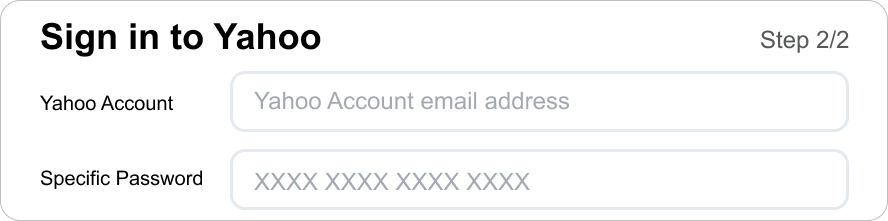
Enter your Yahoo account and app password to finish syncing.